

What Is An Ethernet Port?

An Ethernet port is the physical connection used to attach a computer, router, network switch, gaming console, smart TV, printer, security camera, wireless access point, or other compatible device to a wired network. When an Ethernet cable is plugged into the port, the connected device can exchange data with other devices on the local network and, when available, access the internet.
Ethernet ports remain one of the most dependable ways to connect network equipment. A wired connection commonly provides more consistent performance, lower latency, and less exposure to wireless interference than WiFi. This guide explains what an Ethernet port looks like, how it works, the different port speeds available, what cables fit it, and how to troubleshoot common connection problems.
What Is an Ethernet Port?
An Ethernet port is a network socket that accepts an Ethernet cable fitted with an 8P8C modular plug, commonly called an RJ45 connector. It allows compatible devices to communicate over a wired local area network and can support internet access, file transfers, streaming, gaming, voice, video, security cameras, and many other network applications.
What Does an Ethernet Port Look Like?
An Ethernet port has a rectangular opening that is slightly wider than a standard telephone jack. Inside the port are eight metal contacts that align with the eight contacts on an Ethernet plug. The plug slides into the opening and locks in place using a small plastic retention tab.
Ethernet ports may be labeled in several ways depending on the device:
- Ethernet
- LAN
- Network
- WAN
- Internet
A LAN port generally connects a local device, such as a computer or switch, to a router. A WAN or Internet port generally connects the router to a modem, optical network terminal, or other upstream internet connection. Although the physical openings may look similar, their assigned roles can be different.

Parts of an Ethernet Port
Although an Ethernet port looks simple from the outside, several parts work together to create and maintain the network connection.
| Port Component | Purpose |
|---|---|
| Eight contacts | Create the electrical connection between the device and the eight conductors in the Ethernet cable. |
| Connector opening | Guides the modular plug into the correct position. |
| Locking area | Holds the plug in place when its retention tab clicks into the port. |
| Link and activity LEDs | May indicate that a connection is present, data is moving, or a particular speed has been negotiated. |
| Metal shielding | May help provide continuity in a properly designed shielded cabling system. |
Where Are Ethernet Ports Found?
Ethernet ports are used across residential, commercial, industrial, security, and data center networks. They may be built directly into a device or provided through an adapter, docking station, network interface card, keystone jack, or patch panel.
Common devices with Ethernet ports include:
- Desktop computers and some laptops
- Routers and modems
- Network switches
- Gaming consoles such as Xbox and PlayStation
- Smart TVs and streaming devices
- Network printers
- Network attached storage devices
- IP security cameras and network video recorders
- Wireless access points
- VoIP phones
- Building automation and control equipment
- Ethernet wall outlets and surface mount boxes
Thin laptops and tablets may not include a built in Ethernet port because of limited space. These devices can often connect through a compatible USB to Ethernet adapter or docking station.
What Does an Ethernet Port Do?
The main purpose of an Ethernet port is to create a wired network connection. Once connected, a device can send and receive data through the cable. Depending on the network, that connection may be used for internet access, communication with local devices, file sharing, video streaming, gaming, cloud applications, security camera feeds, voice traffic, or centralized data storage.
A common home network connection looks like this:
Internet Service
↓
Modem or Optical Network Terminal
↓
Router
↓
Ethernet Cable
↓
Computer, Gaming Console, Smart TV, or Network Switch
When several connected devices communicate within the same location, they form a local area network, or LAN. The router usually manages traffic between the local network and the internet, while a switch can provide additional Ethernet ports for more wired devices.
How Does an Ethernet Port Work?
Inside a computer or network device, the Ethernet port connects to a network interface controller, often shortened to NIC. The NIC converts data from the device into signals that can travel over the Ethernet cable and converts incoming signals back into data the device can process.
When a cable is connected, the devices on each end typically perform auto negotiation. This process allows them to determine the fastest speed and duplex mode that both sides support. The final connection speed is limited by the slowest compatible part of the channel, which can include the port, cable, connectors, network switch, router, and connected device.

What Do the Ethernet Port Lights Mean?
Many Ethernet ports have one or two small lights. Their exact meaning varies by manufacturer, so the device manual is the best reference. In general:
- A steady light often indicates that a network link has been established.
- A blinking light often indicates network activity.
- Different colors may represent different negotiated speeds.
- No light may indicate a disconnected cable, inactive device, disabled port, failed negotiation, or hardware problem.
A blinking Ethernet light is usually normal. It commonly means the port is sending or receiving data.
Types of Ethernet Ports and Speeds
Ethernet ports can support different data rates. A faster rated port does not automatically guarantee that the connection will operate at that speed. Both connected devices and the complete cabling channel must support it.
| Port Type | Maximum Nominal Speed | Common Applications |
|---|---|---|
| Fast Ethernet | 100 Mbps | Older computers, printers, cameras, and basic network devices |
| Gigabit Ethernet | 1,000 Mbps | Homes, offices, gaming systems, access points, and modern network equipment |
| 2.5 Gigabit Ethernet | 2.5 Gbps | Multi gig home networks, access points, desktops, and network storage |
| 5 Gigabit Ethernet | 5 Gbps | Higher performance workstations, wireless infrastructure, and storage |
| 10 Gigabit Ethernet | 10 Gbps | Servers, high performance workstations, data centers, and network backbones |
Ports supporting 25 Gigabit and 40 Gigabit Ethernet over twisted pair also exist, but they are specialized and far less common in ordinary homes and offices.
What Is a PoE Ethernet Port?
A Power over Ethernet port can carry both network data and electrical power over compatible twisted pair cabling. This allows devices such as IP cameras, VoIP phones, wireless access points, and some access control devices to operate without a separate local power adapter.
The network switch or injector must support the appropriate PoE standard, and the connected device must be compatible with the supplied power. The cable and connectors should also be selected for the installation and PoE load. Learn more in our guide to Power over Ethernet.
Ethernet Port vs RJ45 Connector
The terms Ethernet port and RJ45 are often used interchangeably, but they describe different parts of the connection.
- Ethernet port: The female socket built into a device, wall outlet, patch panel, or network adapter.
- RJ45 connector: The common name for the modular plug attached to the end of an Ethernet patch cable.
The technical modular configuration used for common Ethernet connections is 8P8C, meaning eight positions and eight contacts. In everyday networking language, however, RJ45 is the term most people recognize.
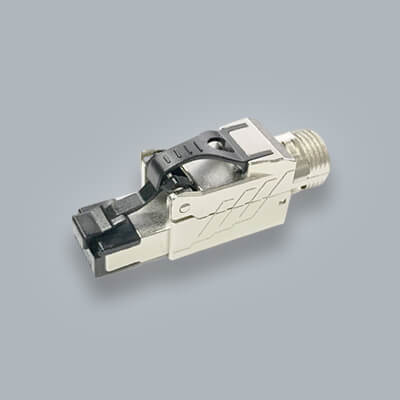
You can shop compatible RJ45 modular plugs for custom cable assemblies and field terminations.
Ethernet Port vs LAN Port
A LAN port is usually an Ethernet port assigned to the local side of a router or other network device. It connects computers, switches, access points, televisions, consoles, and other local equipment.
On a router, a WAN port may use the same physical connector but is assigned to the outside or internet facing connection. The difference is therefore often the role and configuration of the port rather than its physical shape.
Ethernet Port vs WiFi
Ethernet and WiFi can both provide network access, but they serve different needs. WiFi offers mobility and convenience, while Ethernet offers a dedicated physical connection.
| Factor | Ethernet | WiFi |
|---|---|---|
| Mobility | Limited by the cable connection | Allows wireless movement within coverage |
| Consistency | Usually more consistent when properly installed | Can be affected by distance, walls, congestion, and interference |
| Latency | Typically lower and more predictable | Can vary with signal conditions |
| Best for | Gaming, workstations, streaming devices, servers, cameras, and fixed equipment | Phones, tablets, laptops, and mobile devices |
Many networks use both. Fixed devices can be hard wired through Ethernet ports, while mobile devices connect through WiFi.
What Cable Fits an Ethernet Port?
A standard copper Ethernet port accepts a patch cable with an 8P8C modular plug on each end. Common cable categories include Cat5e, Cat6, Cat6A, Cat7, Cat7A, and Cat8, although the appropriate choice depends on the port speed, distance, environment, and complete network design.
Cat5e Ethernet Cable
Cat5e is commonly used for Gigabit Ethernet and remains suitable for many existing home and office networks.
Cat6 Ethernet Cable
Cat6 is a popular choice for modern residential and commercial networks. It supports Gigabit Ethernet to the standard channel distance and can support 10 Gigabit Ethernet over shorter distances when the complete channel is properly installed.
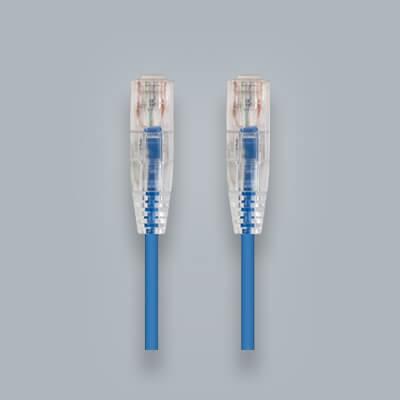
For ready to use device connections, shop our Cat6 patch cables.
Cat6A Ethernet Cable
Cat6A is designed to support 10 Gigabit Ethernet over the full standard channel distance. It is commonly used for higher performance networks, access points, servers, workstations, and installations where additional performance headroom is important.
Patch Cable or Bulk Cable?
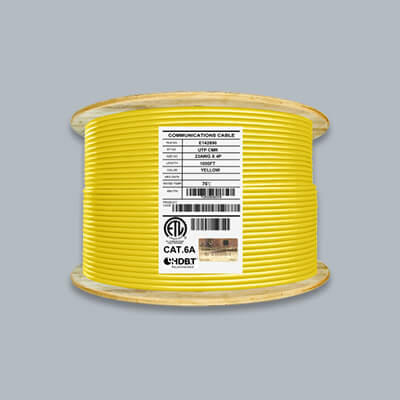
A factory terminated patch cable is normally used to connect a device directly to a router, switch, wall outlet, or patch panel. Bulk Ethernet cable is normally used for permanent building runs and is terminated into compatible keystone jacks or patch panels.
How to Connect a Device to an Ethernet Port
- Select a compatible Ethernet patch cable.
- Insert one plug into the Ethernet port until the locking tab clicks.
- Connect the other end to a router, network switch, modem, wall outlet, or other intended network port.
- Check the port lights for a link indication.
- Confirm that the device has network or internet access.

When removing the cable, press down on the plastic retention tab before pulling the plug out. Do not pull on the cable jacket without releasing the tab, as this can damage the plug or port.
How to Add an Ethernet Port to a Room
A permanent Ethernet outlet can provide a cleaner connection than routing a loose patch cable through the room. A typical outlet includes solid conductor bulk cable, a compatible keystone jack, and an Ethernet wall plate.
Most modular keystone jacks snap into standard Ethernet wall plates. Wall plates are available in single port, dual port, and multiport configurations, allowing network, telephone, coaxial, audio, and other low voltage connections to share the same plate when appropriate. Choose a wall plate with enough ports for the current installation while considering possible future connections.
See our complete guide on how to install an Ethernet outlet.
Why Is My Ethernet Port Not Working?
An Ethernet port can stop working because of a loose cable, damaged patch cord, inactive switch port, disabled network adapter, incorrect software setting, failed termination, or damaged hardware.
Check the Cable Connection
Push both plugs firmly into their ports until they click. A plug that is only partially inserted may not maintain a reliable connection.
Try a Known Working Patch Cable
Replace the existing cable with one that works on another device. This is one of the fastest ways to determine whether the patch cable is causing the problem.
Try Another Port
Move the cable to another LAN port on the router or switch. A single port may be disabled, improperly configured, or damaged even when the rest of the device is operating normally.
Check the Link Lights
No light may indicate that the devices are not establishing a link. A blinking light generally indicates traffic and is usually normal.
Restart the Connected Devices
Restart the computer or network device, followed by the router or switch when appropriate. This can clear temporary software or negotiation issues.
Check the Network Adapter
Make sure the wired Ethernet adapter is enabled in the operating system. Driver problems, power saving settings, or manual configuration changes can prevent the port from connecting.
Inspect the Port and Plug
Look for debris, bent contacts, a broken locking tab, or visible damage. Do not insert metal tools into a powered Ethernet port.
Test Permanent Cabling
When the connection runs through a wall outlet or patch panel, use a suitable cable tester to verify conductor order and continuity. A poor termination can create an open, short, reversal, crossed pair, or split pair.
Ethernet Port Troubleshooting Checklist
- Confirm both cable ends are fully inserted.
- Try a known working Ethernet cable.
- Test another router or switch port.
- Look for link and activity lights.
- Restart the connected device and network equipment.
- Confirm the Ethernet adapter is enabled.
- Inspect the plug and port for damage.
- Test any permanent cable, wall jack, or patch panel connection.
For a more detailed diagnostic process, read our guide on what to do when an Ethernet cable is not working.
Why Is My Ethernet Connection Slower Than Expected?
The negotiated speed is determined by the slowest compatible part of the connection. For example, a computer with a Gigabit port connected to a 100 Mbps switch port will normally be limited to 100 Mbps.
Common causes of slower speeds include:
- A port that supports a lower maximum speed
- A damaged or lower category cable
- Only two wire pairs making a proper connection
- A poor keystone jack or patch panel termination
- Manual speed settings on the network adapter
- Outdated drivers or device firmware
- Network congestion or limited internet service speed
A basic continuity tester can confirm the wire map, but it does not necessarily certify that the cable meets its category performance requirements.
Frequently Asked Questions
Is an Ethernet Port the Same as an Internet Port?
An Ethernet port is the physical network connection. A router may label its upstream Ethernet connection as Internet or WAN, while the local device connections are labeled LAN.
Is an Ethernet Port the Same as an RJ45 Port?
The terms are commonly used to describe the same style of network connection. More precisely, the port is the socket and the RJ45 connector is the common name for the plug attached to the cable.
Can I Plug Cat6 Into Any Ethernet Port?
A Cat6 patch cable can connect to standard Ethernet ports that use the common 8P8C modular interface. The connection will operate at the fastest speed supported by the complete channel and connected devices.
Can I Plug Cat6A Into a Gigabit Ethernet Port?
Yes. Cat6A is backward compatible with standard lower speed Ethernet applications when it is fitted with compatible modular plugs.
Can I Use Cat8 Cable in a Regular Ethernet Port?
A properly terminated Cat8 patch cable can physically connect to a compatible standard modular Ethernet port. It will not make the port faster than the speed supported by the connected equipment.
Why Is the Ethernet Port Light Blinking?
A blinking light usually indicates that data is being transmitted or received. The exact light behavior and colors vary by manufacturer.
What Does an Orange Ethernet Light Mean?
The meaning depends on the device. It may indicate activity, a particular connection speed, PoE status, or a warning condition. Check the device documentation for the correct interpretation.
Why Does My Ethernet Port Have No Light?
The cable may be disconnected or damaged, the connected device may be off, the port may be disabled, or the two devices may have failed to establish a link.
Can an Ethernet Port Provide Power?
Yes, when the port and connected device support Power over Ethernet. Standard non PoE ports provide data only.
Can One Ethernet Port Connect Multiple Devices?
One physical Ethernet port normally connects to one other port. A network switch can expand one network connection into multiple Ethernet ports for additional devices.
Do All Laptops Have Ethernet Ports?
No. Many thin laptops omit the built in port. A compatible USB Ethernet adapter or docking station can add a wired network connection.
Is Ethernet Faster Than WiFi?
It depends on the equipment and conditions. Ethernet commonly provides more consistent speeds and lower latency, while modern WiFi can also deliver high performance when signal quality is strong.
What Is the Difference Between a LAN Port and WAN Port?
A LAN port connects devices on the local network. A WAN port connects the router to an upstream network, commonly a modem or internet service connection.
Can an Ethernet Port Wear Out?
Yes. Repeated insertion, broken plug tabs, bent contacts, contamination, impact, or electrical damage can eventually affect the port.
Can I Clean an Ethernet Port?
Power down the device first and follow the manufacturer's cleaning instructions. Avoid liquids, metal tools, and anything that could bend the contacts.
Why Does My Ethernet Connect at 100 Mbps Instead of 1 Gbps?
One or more pairs may not be connected correctly, the cable may be damaged, or one of the ports may only support Fast Ethernet. Gigabit Ethernet requires all four twisted pairs.
Do Ethernet Ports Support Both Uploads and Downloads?
Yes. Modern Ethernet connections commonly operate in full duplex mode, allowing data to be sent and received at the same time.
Do I Need an Ethernet Port for Internet Access?
No. Devices can also access a network through WiFi, cellular service, fiber interfaces, or other connection methods. Ethernet is simply one of the most reliable options for fixed devices.
Shop Ethernet Cables and Connectivity
Reliable Ethernet performance depends on the complete connection, including the port, cable, connectors, and terminations. Infinity Cable Products carries network cabling and connectivity for home, business, security, and structured cabling installations.
- Shop Ethernet patch cables
- Shop Cat6 patch cables
- Shop bulk Ethernet cable
- Shop RJ45 modular plugs
- Shop keystone jacks
- Shop Ethernet wall plates
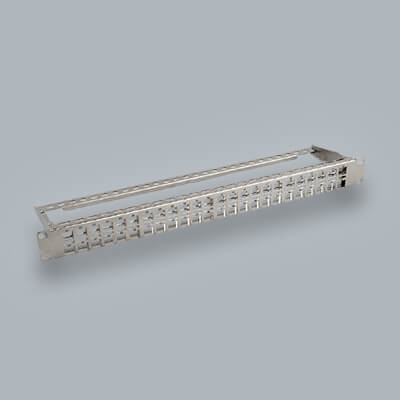
- Shop patch panels
Final Thoughts
Ethernet ports provide the physical connection between wired network devices. They are found on computers, routers, switches, gaming systems, televisions, cameras, access points, printers, wall outlets, and many other products. By pairing the port with a compatible Ethernet cable and properly installed network components, users can create a fast, stable, and dependable connection.
Understanding the port speed, cable category, LAN or WAN role, PoE capability, and link light behavior makes it easier to build a network and diagnose problems. Whether you are connecting one computer or planning an entire structured cabling system, the Ethernet port remains one of the most important connection points in the network.

Thank you for the information
Even I understood it. Now I have to discover which printer is the best for document prints and picture prints